Wednesday, January 7, 2015

Install java and Set path for java And run your first program in Windows

You can just download and install JDK and JRE from http://www.oracle.com/technetwork/java/javase/downloads/index.html


After the installation you have to set path for java.

Steps to set JDK Path and Classpath in Windows 7 and Windows 8

Before setting JDK Path, let's first verify Type javac in command prompt in windows 8 and see output, if you get javac is not recognized as an internal or external command, means JDK Path is not set.

1. Confirm that PATH is not set for Java by typing javac in command prompt.
2. Open Control Panel and Select System and Security
3. Select System
4. Select Advanced System Settings
5. Select Environment Variables
6. Select and Edit Path Environment variable
7. Verify Java path by typing javac in command prompt


Step 1 : Open Control Panel in Windows 8
How to set PATH in Windows 8 operating System

Step 2 : Select System
How to set Classpath in Windows 8

Step 3 : Select Advanced System Settings in Windows 8
How to set path in Windows 7

Step 4 : Select Environment Variables
How to set Classpath in Windows 7 operating system


Step 5 : Select and Edit Path Environment variable in Windows 8
set path environment variable in windows 8 operating system

Step 6 : Verify Java path by typing javac in command prompt
just type javac command, this time you will see different output which shows various details of java command rather than getting earlier error.You can follow similar process to set Classpath in windows 8 as well. But it’s not a good practice to use CLASSPATH environment variable to run Java application, instead every Java application should use –classpath option to specify classpath. You can also see How Classpath works in Java for more details on Java Classpath.  

Now you are ready to write Java code and compile and run them. Why not just try with HelloWorld Java program. By the way to know more about PATH and Classpath, which is essential for Java developers, See following tutorials


Read more: http://javarevisited.blogspot.com/2013/02/windows-8-set-path-and-classpath-java-windows-7.html#ixzz3OBqyeCAn

Sunday, January 4, 2015

Use Your Mac as a Wi-Fi Hotspot and More

There are Wi-Fi hotspots and networks floating around everywhere these days from your local coffee shops to far-away airports. But what if you find yourself without a wireless connection when five friends need to get online? Let's find out how to create a Wi-Fi hotspot from your wired connection with your Mac! We will also be covering how to set up computer-to-computer networks for sharing files, screens, and more. No routers required, we promise.
All you need to create a Wi-Fi hotspot for your other Wi-Fi-enabled computers, phones, and tablets is a wired ethernet connection. You can check that you have this enabled by opening up System Preferences and going to the Network section.
System Preferences Ethernet Connected
Be sure you're connected to the Internet via a wired connection. (You wouldn't need to follow this tip if you already have a Wi-Fi connection!)
Next, head to Sharing in System Preferences. Take a look at the "Internet Sharing" sub-menu and be sure you have the "Wi-Fi" option checked, as shown below. You may have to unlock the preferences by clicking on the lock icon at the bottom-left of the window.
System Preferences Internet Sharing
Be sure to have "Wi-Fi" checked on! You can use other options as well, but we will be focusing on Wi-Fi sharing.
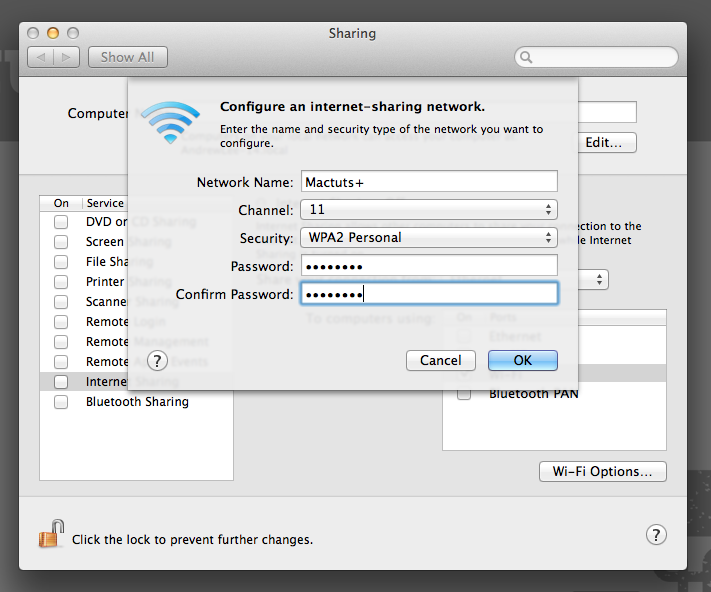
Click on "Wi-Fi Options" at the bottom-right of the screen and then you will find a popup that allows you to set the name, channel, and password of your ad-hoc network.
Wi-Fi Option Menu
You can type in your settings for your ad-hoc connection here. Check the "Security" drop-down to add a password.
Now to start the network, check the "Internet Sharing" box. A new menu will popup asking you if you are sure you want to start it. You may get a popup asking if you would like to turn on your Wi-Fi. Click "Turn Wi-Fi On" if you currently have your Wi-Fi connection off. Click "Start" afterwards and now you have successfully started your own ad-hoc network! You can now have other Wi-Fi enabled computers connect to your Mac.
Start Wi-Fi Confirmation
Click "Start" to open up your ad-hoc network.
Enjoy sharing your Internet connection with others around you! You can turn off the network by just unchecking the "Internet Sharing" box in the same Sharing section.
So now you can set up an ad-hoc Wi-Fi network to share your Internet connection, but you can also quickly setup a wireless connection between computers without any network connection at all. You can do this if you want to share files, share screens, and more (you cannot connect to the Internet this way, however! Check above to do that.)
First of all, click on your Wi-Fi menubar icon and get to the option to "Create Network...". Click it and you will get a popup asking for some information.
Wi-Fi Menubar Icon
Click "Create Network..."
Fill in the Network name, choose a channel, and set a password if you would like some security. Note that the password must be a certain length if you choose to add one (it states how many characters in the prompt).
Computer-to-Computer Network Prompt
Enter your custom network's name, channel, and password.
Click okay, and now your network is set up! Go onto your other Mac or other device and you can now connect to the Wi-Fi-based network just as you would any other Wi-Fi connection. Any computer on the network will be connected even without an Internet connection. One thing you could do now is to look at files on other computers in the Finder sidebar and transfer them easily and wirelessly (however, you may want to consider OS X's AirDrop feature on OS X 10.7+ for that).
Hopefully, you won't end up in a situation in which there are no Wi-Fi hotspots for everybody to share, but in case you do, it can be incredibly simple to setup a sharing system on your Mac. Personally, this system works great when I'm traveling and only have a single cable to connect a dozen different gadgets. Everybody gets to connect to the Internet from just one cord!